
How to Hide Columns in Excel (and unhide them later)
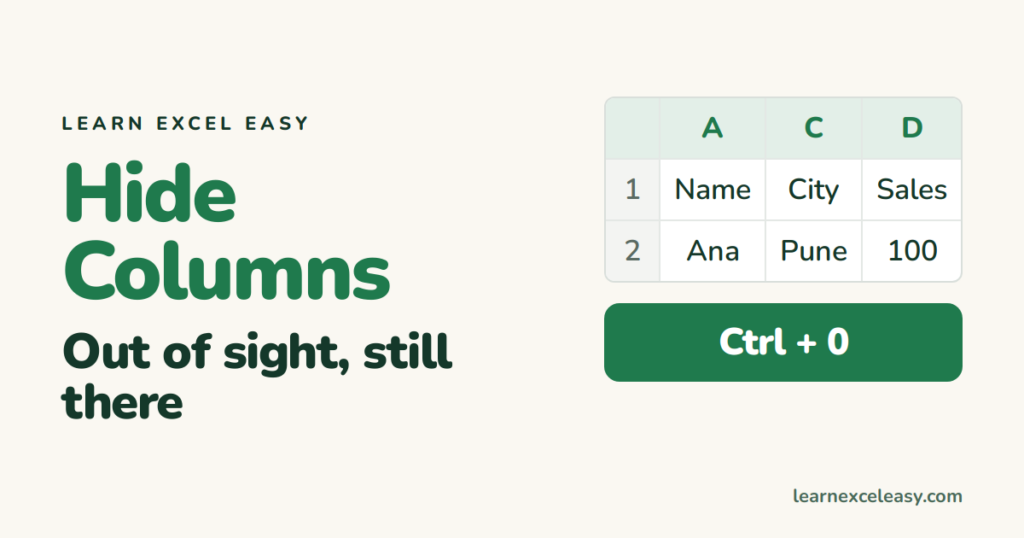
Hiding a column tucks it out of view. The data stays, formulas still use it, it just does not show or print.
Steps
- Click the column letter, e.g. B. For several, click the first and Shift + click the last; for scattered ones hold Ctrl.
- Right-click a selected letter › Hide. Or press Ctrl + 0.
The letters now jump A, C, D — B is hidden. A thin double line marks the spot.
Unhide
- Select the columns either side: click A, Shift + click C.
- Right-click › Unhide.
Everything hidden: click the corner triangle, then Ctrl + Shift + 0 or right-click any letter › Unhide.
Hide and show often? Use Group
- Select the columns. Data › Group.
- A − button appears above them. Click − to collapse, + to expand.
Better than hiding for helper columns you check now and then.
Check it worked
A formula that refers to the hidden column still shows its result. Printing skips the hidden column.
Common mistakes
Column A is hidden and you cannot select left of it. Type A1 in the Name Box (left of the formula bar), Enter, then Home › Format › Hide & Unhide › Unhide Columns.
Copy-paste includes hidden columns. To copy only what you see: select, F5 › Special › Visible cells only, then copy.

20 years with spreadsheets and enterprise systems. Writes one short, plain-English Excel lesson a day. Got an Excel question? learnexceleasycom@gmail.com
