
Excel Macros: what they are and your first one in 5 minutes
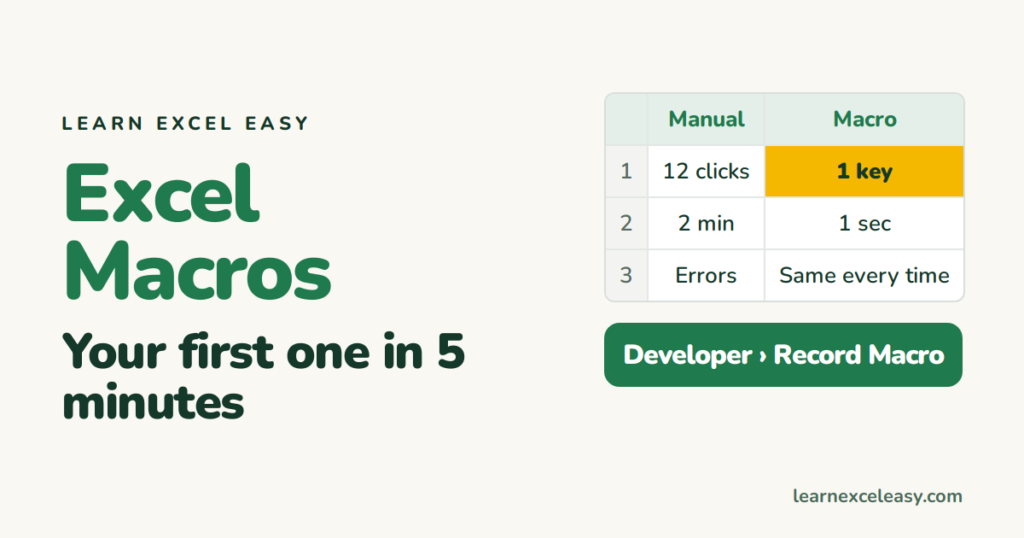
A macro is a saved set of actions you can replay. You do a task once while Excel watches; afterwards one keypress does it again. No programming needed to start.
When a macro is worth it
- You do the same 10 clicks every day (format a report, clean an export).
- The task must be done exactly the same way each time.
- Someone else needs to do it without learning the steps.
Your first macro: 5 steps
- Show the Developer tab: right-click the ribbon › Customize the Ribbon › tick Developer.
- Developer › Record Macro. Name it
TidyReport. Shortcut: Shift + T (gives Ctrl+Shift+T). OK. - Do the task: bold row 1, autofit columns (double-click a column edge), freeze the top row.
- Developer › Stop Recording.
- Open a messy sheet and press Ctrl + Shift + T.
Full walkthrough: record a macro.
Where macros live
Inside the workbook. Save as .xlsm (Macro-Enabled) or the macro is lost. To have a macro available in every file, store it in the Personal Macro Workbook when recording.
The code behind it
Recording writes VBA code. Alt + F11 opens it. You can read it, tweak a value, and learn from it — see open the VBA editor.
Safety
Macros can delete data and files. Run only macros you wrote or trust. Excel blocks them by default for that reason — enabling macros explains the yellow bar.
Check it worked
Developer › Macros lists TidyReport. Select it and click Run — same result as the shortcut.

20 years with spreadsheets and enterprise systems. Writes one short, plain-English Excel lesson a day. Got an Excel question? learnexceleasycom@gmail.com
