
Excel VBA Tutorial for Beginners: from zero to a working macro
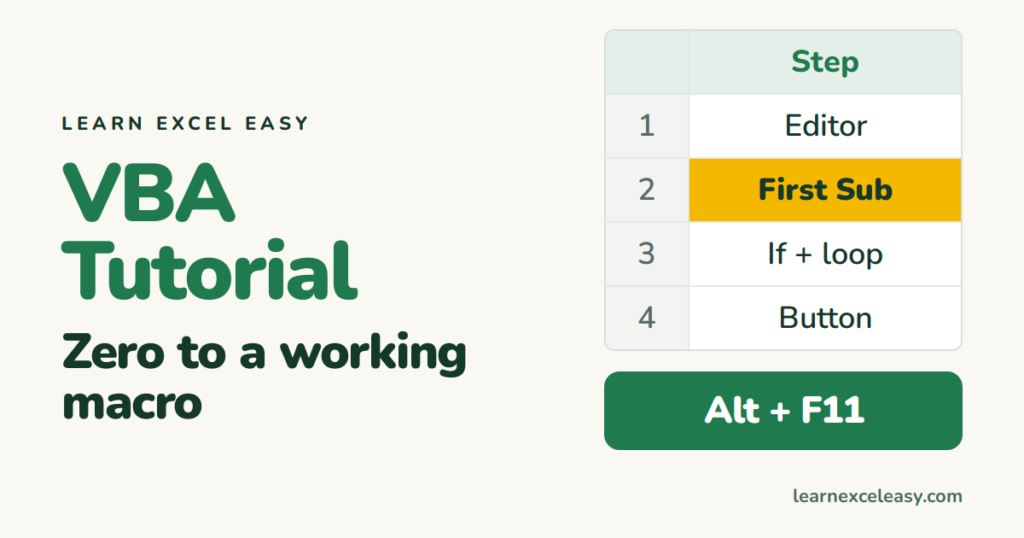
VBA is the language behind macros. You need about eight ideas to do useful work. This page is all eight, in order, each with a line you can type.
1. The editor
Alt + F11. Insert › Module. Code goes on the white page. F5 runs the Sub the cursor is in. More.
2. A Sub
Sub Hello()
    MsgBox "Hello"
End Sub
Every macro is a Sub. Run it — a box pops up.
3. Talking to cells
Range("A1").Value = "Sales"
Cells(2, 1).Value = 100          ' row 2, column 1
Range("B2:B10").ClearContents
Range("A1").Font.Bold = True
4. Variables
Dim total As Double
total = Range("B2").Value * 1.18
Range("C2").Value = total
Dim creates a named box. Types: Long (whole numbers), Double (decimals), String (text), Boolean.
5. If
If Range("B2").Value > 100 Then
    Range("C2").Value = "Big"
Else
    Range("C2").Value = "Small"
End If
6. Loops
Dim i As Long
For i = 2 To 50
    If Cells(i, 2).Value > 100 Then Cells(i, 3).Value = "Big"
Next i
7. Ask the user
If MsgBox("Continue?", vbYesNo) = vbNo Then Exit Sub
Dim n As String: n = InputBox("Name?")
8. A button and saving
Developer › Insert › Button › pick your Sub. Save as .xlsm.
Put it together
Sub MarkBigOrders()
    Dim i As Long, last As Long
    last = Cells(Rows.Count, 2).End(xlUp).Row
    For i = 2 To last
        If Cells(i, 2).Value > 100 Then
            Cells(i, 3).Value = "Big"
            Cells(i, 3).Font.Bold = True
        End If
    Next i
    MsgBox "Checked " & last - 1 & " orders"
End Sub
Check it worked
Numbers in B2:B20, run it. Big ones get a bold “Big” in C; the box says “Checked 19 orders”.
When something breaks
Yellow line = it stopped there. Read the message, click Debug, fix, press the Reset ■ button, F5 again. F8 runs one line at a time so you can watch.
Next
Record a macro and read the code Excel wrote — it is the fastest way to learn the names of things. Record a macro.

20 years with spreadsheets and enterprise systems. Writes one short, plain-English Excel lesson a day. Got an Excel question? learnexceleasycom@gmail.com
