
How to Find Duplicates in Excel (without deleting anything)
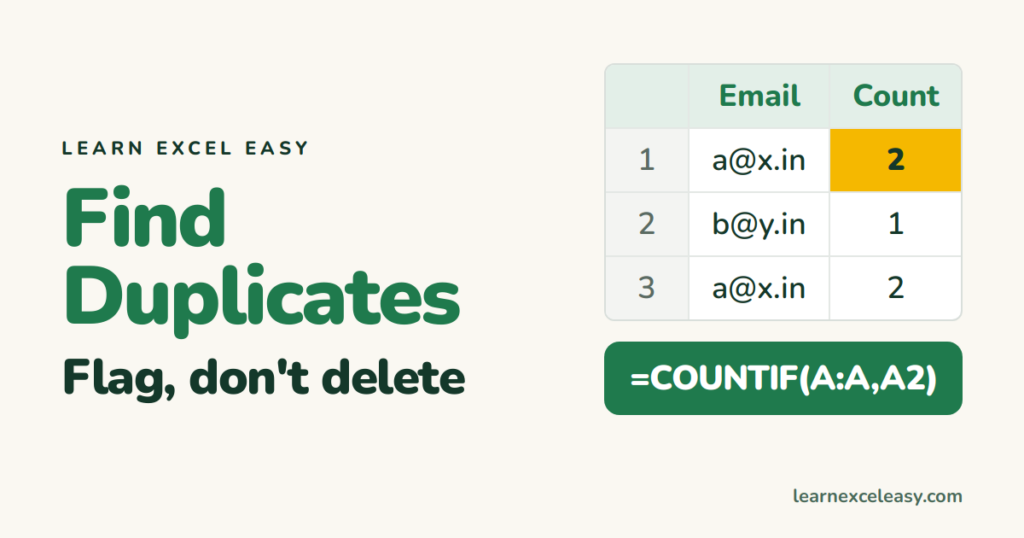
Before deleting duplicates, you usually want to see them. Here are four ways to find them while keeping all the data.
1. Colour them (10 seconds)
Select the column › Home › Conditional Formatting › Highlight Cells Rules › Duplicate Values › OK. Every repeated value turns red. Full guide: highlight duplicates.
2. Count each value with COUNTIF
In the column next to the data:
=COUNTIF(A:A,A2)
1 = unique, 2 or more = duplicate. Filter this column for values greater than 1 to see only the duplicates. See COUNTIF.
3. Mark only the second and later copies
=IF(COUNTIF($A$2:A2,A2)>1,"Duplicate","")
The first occurrence stays blank, repeats are marked. Filter for “Duplicate” and delete just those rows — the originals survive.
4. Duplicate rows (several columns must match)
Name in A and date in B must both match:
=COUNTIFS(A:A,A2,B:B,B2)
See COUNTIFS.
List each duplicate once (Excel 365)
=UNIQUE(FILTER(A2:A500,COUNTIF(A2:A500,A2:A500)>1))
Duplicates that don’t look like duplicates
“Asha Rao” and “Asha Rao ” (trailing space) are different to Excel. Clean with TRIM first. Capitals don’t matter — COUNTIF treats “ASHA” and “asha” as the same.
Done checking? Remove them
Remove Duplicates deletes all but the first copy in 3 clicks. Comparing two lists instead? compare two columns.

20 years with spreadsheets and enterprise systems. Writes one short, plain-English Excel lesson a day. Got an Excel question? learnexceleasycom@gmail.com
