
Named Ranges in Excel: give a cell a name like TaxRate
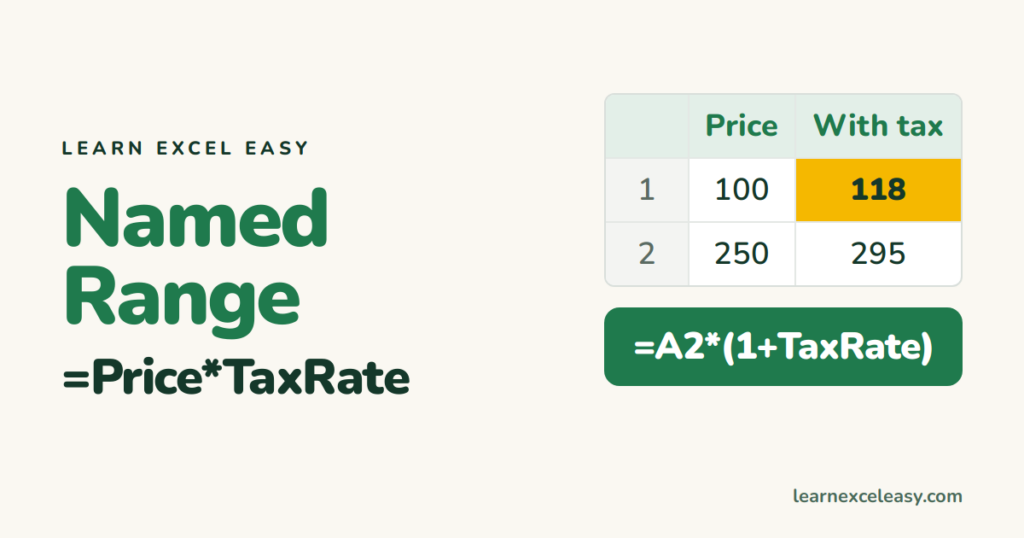
Instead of =A2*$F$1, write =A2*TaxRate. A named range is a label for a cell or range. Formulas get easier to read, and names are always absolute — no $ needed.
Create a name (fastest)
- Select the cell (F1 with 18%).
- Click the Name Box — the box left of the formula bar that says F1.
- Type
TaxRateand press Enter.
Now use it anywhere: =A2*(1+TaxRate).
Name many columns at once
Select a table including headers › Formulas › Create from Selection › Top row. Each column gets its header as a name: =SUM(Sales).
Rules
- No spaces — use Tax_Rate or TaxRate.
- Must start with a letter or underscore.
- Can’t look like a cell address (Q1 and ABC1 are not allowed).
Manage names
Formulas › Name Manager (Ctrl+F3): edit what a name points to, delete old ones, find names showing #REF! (their cells were deleted).
Jump to a name
Pick it from the Name Box drop-down, or press F5 and choose it.
Where names shine
- Drop-down sources:
=Regions. See drop-down list. - Dependent drop-downs depend on them.
- Lookups:
=XLOOKUP(A2,ProductList,PriceList).
Names vs Tables
A name on A2:A100 doesn’t grow when you add row 101. An Excel Table does, and its columns can be used by name too (=SUM(Sales[Amount])). For growing lists, prefer a Table.
Related: absolute references

20 years with spreadsheets and enterprise systems. Writes one short, plain-English Excel lesson a day. Got an Excel question? learnexceleasycom@gmail.com
