
#VALUE! Error in Excel: 6 causes and how to fix each
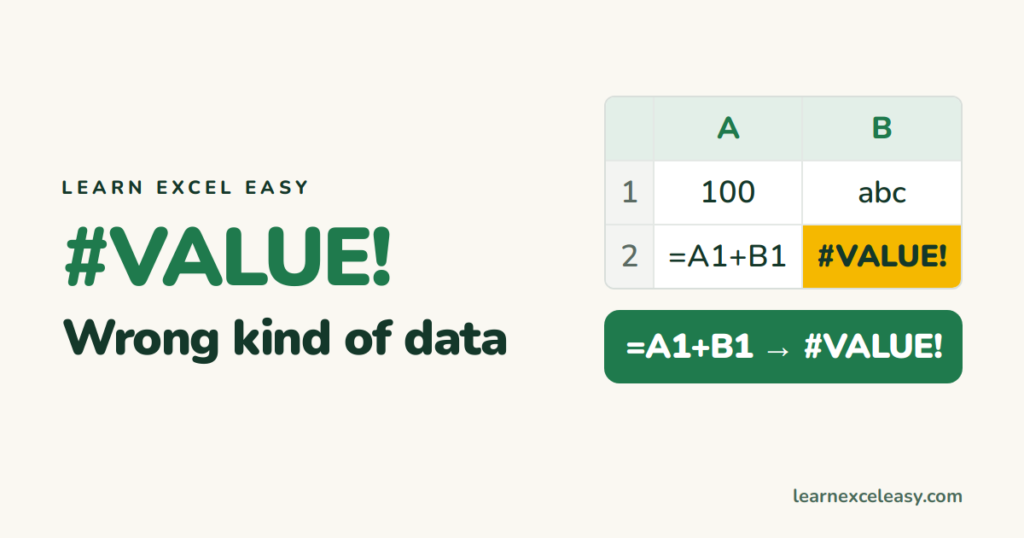
#VALUE! means “this formula got the wrong type of value”. Almost always: text where a number or date should be.
Find the cell causing it
Click the error › the small warning icon › Show Calculation Steps. Or select part of the formula in the formula bar and press F9 to see its value (Esc to undo).
1. Text in a calculation
=A1+B1 where B1 contains “abc” or “N/A”. Fix the data, or use SUM, which ignores text: =SUM(A1,B1).
2. A space that looks empty
A cell with just a space isn’t blank. =LEN(B1) shows 1. Delete it, or clean the column with TRIM.
3. Numbers stored as text
Imported numbers sit on the left with a green triangle. Most maths still works, but some functions return #VALUE!. Fix: convert text to number.
4. Dates stored as text
=B2-A2 on text dates fails. Check with =ISNUMBER(A2). Fix: convert text to date.
5. Ranges of different sizes
=SUMPRODUCT(A2:A10,B2:B11), or FILTER with a condition range a different height from the data. Make every range the same size.
6. Text functions that find nothing
=SEARCH("-",A2) returns #VALUE! when there’s no dash. Wrap it: =IFERROR(SEARCH("-",A2),0). See SEARCH.
Hide it only when it’s expected
=IFERROR(formula,"") — but fix real data problems rather than hiding them. See IFERROR.
All error codes: formula errors

20 years with spreadsheets and enterprise systems. Writes one short, plain-English Excel lesson a day. Got an Excel question? learnexceleasycom@gmail.com
