
Excel Shared Workbook: how to share a file so several people can edit
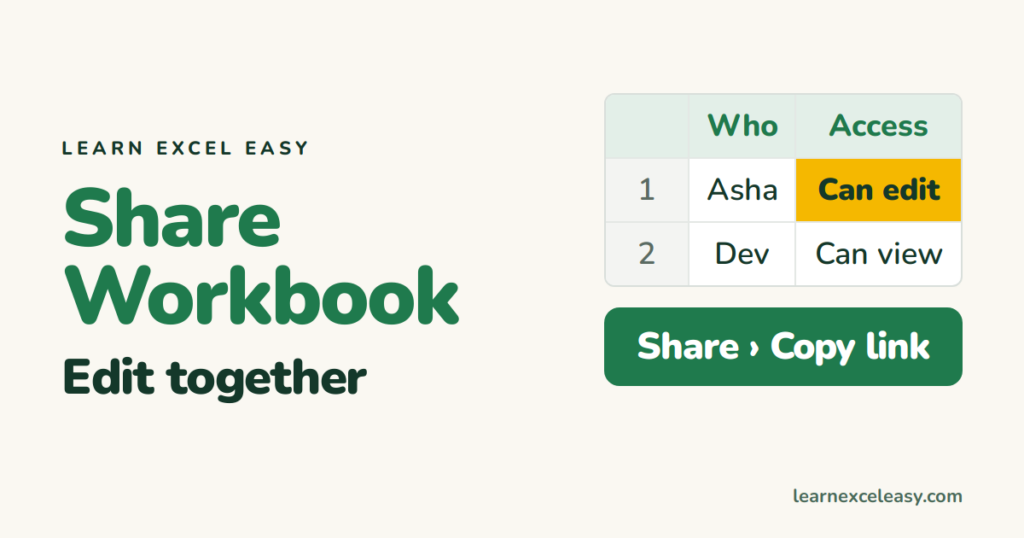
Quick answer: save the file to OneDrive or SharePoint and click Share — everyone edits the same copy at once. The old “Shared Workbook” button is legacy and hidden; co-authoring replaced it.
Modern Excel shares a file through the cloud. Everyone opens the same copy and edits at the same time — called co-authoring.
Share for editing
- Save the file to OneDrive or SharePoint (File › Save As › OneDrive).
- Click Share (top right).
- Type the people’s email addresses, or click Copy link.
- Choose Can edit or Can view › Send.
They open it in Excel desktop or Excel for the web. Each person’s cursor shows in a different colour.
View only
Pick Can view in the share box. They can read, filter and copy, but not change your file.
Protect parts of the sheet
Sharing is all-or-nothing on the file. To stop edits to formulas or headings, lock those cells: protect certain cells, or protect the sheet: protect a sheet.
See who changed what
File › Info › Version History — open or restore any earlier version. In Excel 365 also Review › Show Changes.
The old “Share Workbook” button
The legacy feature (Review › Share Workbook, with track changes) is hidden in current Excel because co-authoring replaced it. It blocked tables, slicers and many features. Use OneDrive sharing instead.
Co-authoring doesn’t work
- The file is in an old format (.xls) — save as .xlsx.
- It’s saved on your PC or email, not in OneDrive/SharePoint.
- It’s password-encrypted (File › Info › Protect Workbook › Encrypt) — remove that for co-authoring.
Sending a copy instead? File › Export › Create PDF keeps the layout fixed, or send a picture: Excel to image.

20 years with spreadsheets and enterprise systems. Writes one short, plain-English Excel lesson a day. Got an Excel question? learnexceleasycom@gmail.com
