
Print an Excel Sheet on One Page (fit to page)
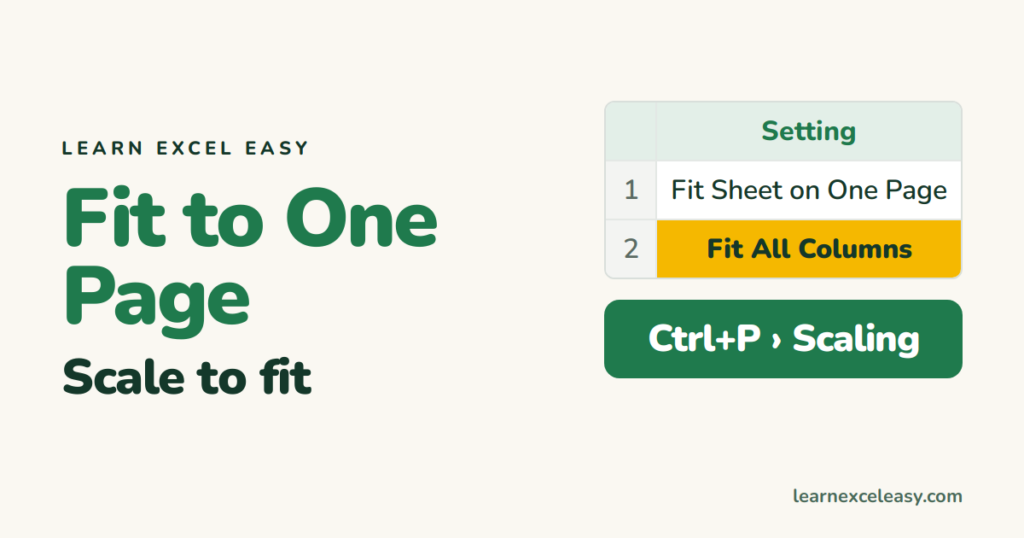
A sheet that prints one column on page 2 and three rows on page 3 is frustrating. Scaling fixes it.
The quick way
- Ctrl+P (print preview).
- Under Settings, the last box says No Scaling. Change it to Fit Sheet on One Page.
Better for long lists: fit the width only
Same box › Fit All Columns on One Page. Columns shrink to fit across; rows continue onto more pages at a readable size. For a long list this is almost always the right choice.
Exact control
Page Layout › Scale to Fit: Width 1 page, Height Automatic (or 2 pages, etc.).
Text too small?
Fitting a big sheet on one page can shrink it to 30%. Help it first:
- Landscape: Page Layout › Orientation › Landscape.
- Narrow margins: Page Layout › Margins › Narrow.
- Print only what’s needed: select the range › Page Layout › Print Area › Set Print Area.
- Hide columns nobody needs on paper.
- Autofit column widths so none are wider than necessary — autofit columns.
Headings on every page
If rows run over, repeat the header row: print header on every page.
Page breaks where you want them
View › Page Break Preview, drag the blue lines. See page breaks.

20 years with spreadsheets and enterprise systems. Writes one short, plain-English Excel lesson a day. Got an Excel question? learnexceleasycom@gmail.com
