
How to Rename a Sheet in Excel (double-click the tab)
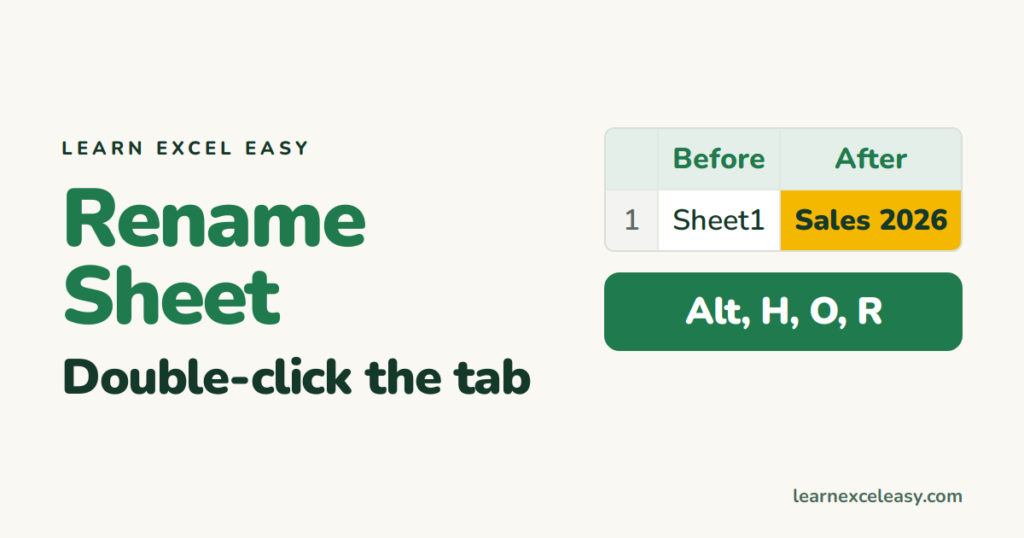
Double-click the tab
- Double-click the sheet tab. The name turns editable.
- Type the new name.
- Press Enter.
Right-click
Right-click the tab › Rename.
Keyboard
Press Alt, H, O, R one after another, type the name, Enter.
Rules for sheet names
- Up to 31 characters.
- Not allowed:
/ \ ? * : [ ] - Can’t be blank, and can’t be the word History.
- Two sheets in one file can’t share a name.
What happens to formulas
Excel updates formulas for you. =Sheet1!B2 becomes ='Sales 2026'!B2 — quotes appear because the name has a space. Only text inside INDIRECT is not updated.
Colour the tab too
Right-click › Tab Color makes important sheets easy to spot.
Related: add a new sheet · refer to another sheet

20 years with spreadsheets and enterprise systems. Writes one short, plain-English Excel lesson a day. Got an Excel question? learnexceleasycom@gmail.com
