
How to Add Bullet Points in Excel (4 ways)
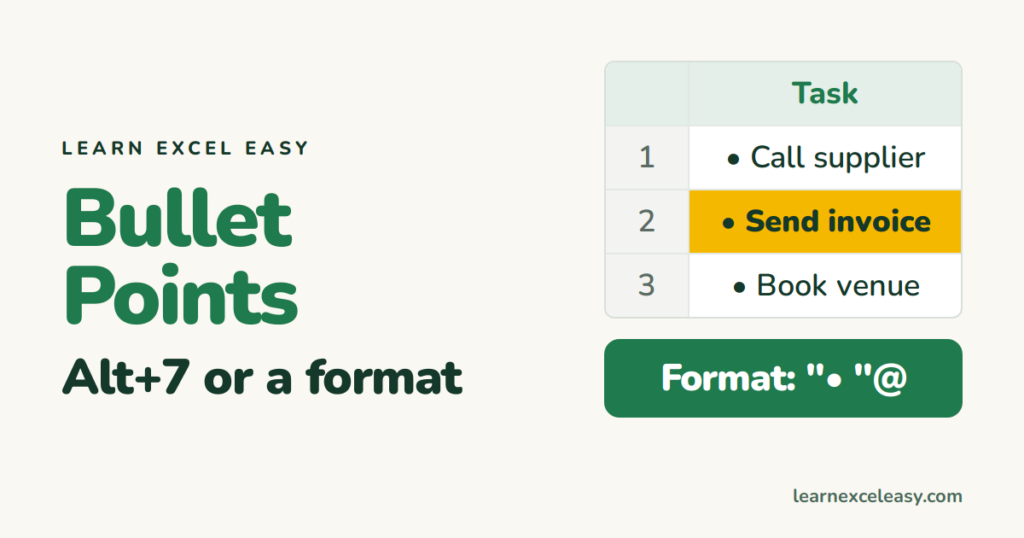
Excel has no bullet button like Word. These four ways do the job.
1. Keyboard: Alt + 7
Double-click the cell, hold Alt and press 7 on the number pad. A • appears. Type your text after it. (Laptop without a number pad? Use way 2 or 3.)
2. Bullet a whole column with a format
- Select the cells.
- Ctrl+1 › Number › Custom.
- In Type, enter
• @(copy the dot from this page). - OK.
Every entry now shows a bullet, but the cell still holds just your text — so sorting and lookups keep working. More: custom number formats.
3. Several bullets in one cell
Type • and the first item, press Alt+Enter for a new line inside the cell, add the next bullet. Turn on wrap text so all lines show.
4. Insert › Symbol
Insert › Symbol, choose font Wingdings for ticks, arrows and squares, or search for character code 2022 for the round bullet.
A formula that adds bullets
="• "&A2
Or with CHAR: =CHAR(149)&" "&A2 on Windows.
Need real paragraph bullets?
Insert › Text Box, type the list, right-click › Bullets. See insert a text box.

20 years with spreadsheets and enterprise systems. Writes one short, plain-English Excel lesson a day. Got an Excel question? learnexceleasycom@gmail.com
