
Custom Number Format in Excel: K, M, text labels, colours
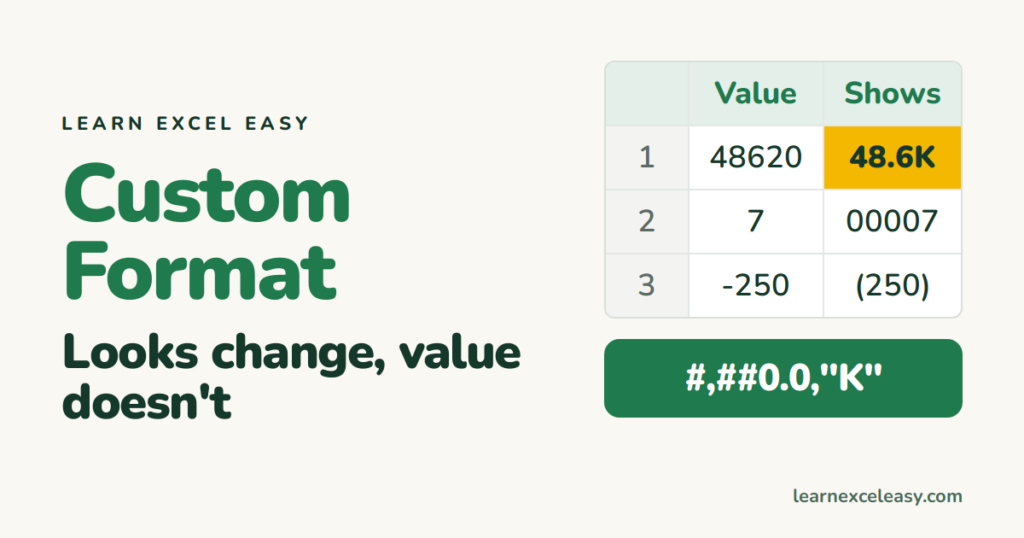
A custom number format changes how a number displays. The value underneath stays the same, so totals and formulas still work.
Where
Select the cells › Ctrl+1 › Number tab › Custom › type the code in the Type box.
Ready-to-copy codes
| Code | Value | Shows |
|---|---|---|
#,##0 |
1234567 | 1,234,567 |
#,##,##0 |
1234567 | 12,34,567 |
#,##0.0,"K" |
48620 | 48.6K |
#,##0.0,,"M" |
2450000 | 2.5M |
0" kg" |
250 | 250 kg |
00000 |
7 | 00007 |
0.0% |
0.125 | 12.5% |
"₹"#,##0 |
5000 | ₹5,000 |
The four sections
positive ; negative ; zero ; text
Example: #,##0;[Red](#,##0);"-" shows positives normally, negatives in red brackets, and zero as a dash.
Useful tricks
- Hide zeros:
0;-0;;@(nothing in the zero section). - Hide everything:
;;;— value still there, invisible. - Colours by value:
[Green][>=1000]#,##0;[Red][<1000]#,##0 - Dates:
ddd, dd mmm→ Tue, 29 Sep. See date format.
Symbols in codes
0 = always show a digit, # = show only if needed, , after digits = divide by 1,000, text goes in "quotes".
Need the formatted result as text?
Use the same code in the TEXT function. Everyday formats: number format.

20 years with spreadsheets and enterprise systems. Writes one short, plain-English Excel lesson a day. Got an Excel question? learnexceleasycom@gmail.com
