
SWITCH Function in Excel (cleaner than nested IF)
Excel 2019 and later.
Syntax
=SWITCH(expression, value1, result1, [value2, result2], ..., [default])
Example
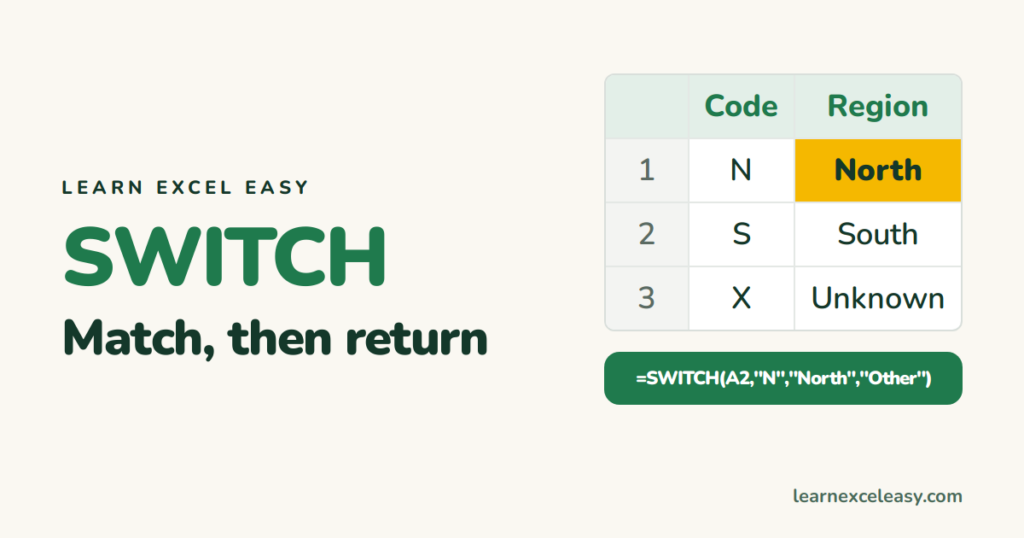
=SWITCH(A2,"N","North","S","South","E","East","W","West","Unknown")
A2 is checked once against each value. The last lone argument is the default when nothing matches — leave it out and you get #N/A.
Same thing with IF
=IF(A2="N","North",IF(A2="S","South",IF(A2="E","East",IF(A2="W","West","Unknown"))))
SWITCH is shorter and easier to check.
Day names from numbers
=SWITCH(WEEKDAY(A2),1,"Sun",7,"Sat","Weekday")
See WEEKDAY.
Ranges (greater than / less than)
SWITCH only tests “equals”. The trick is to switch on TRUE:
=SWITCH(TRUE,B2>=90,"A",B2>=75,"B",B2>=50,"C","D")
IFS does the same and reads more naturally.
SWITCH, IFS or a lookup?
- A few fixed codes → SWITCH.
- Ranges → IFS.
- Lots of codes or ones that change → a small table and XLOOKUP.
Also: CHOOSE for 1, 2, 3 positions.

20 years with spreadsheets and enterprise systems. Writes one short, plain-English Excel lesson a day. Got an Excel question? learnexceleasycom@gmail.com
