
Excel CHOOSE Function: pick a value by its position
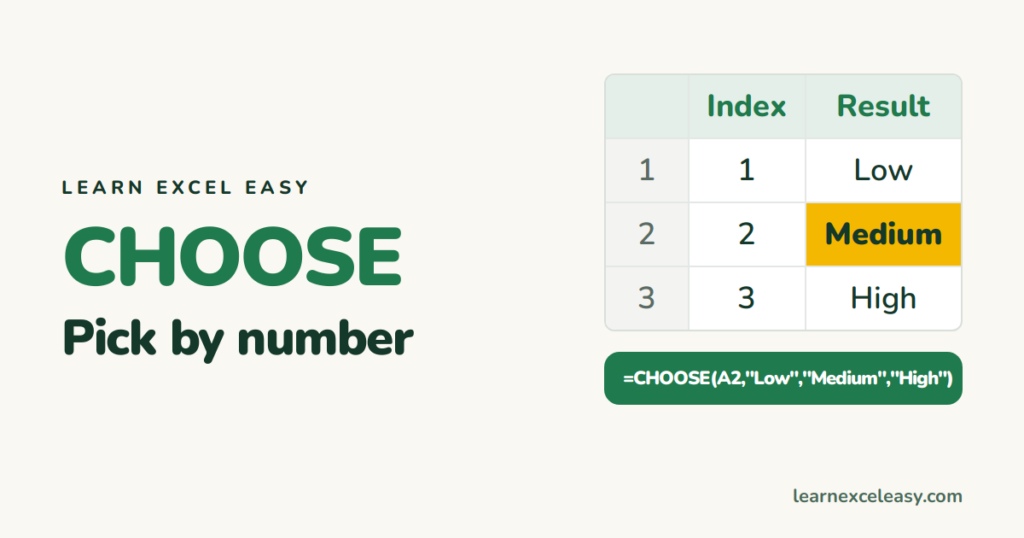
CHOOSE takes a number and returns the item in that position from a list you give it.
The formula
=CHOOSE(index_num, value1, value2, ...)
=CHOOSE(2,"Low","Medium","High") returns Medium. Up to 254 values.
Use 1: quarter labels
=CHOOSE(ROUNDUP(MONTH(A2)/3,0),"Q1","Q2","Q3","Q4")
Or a fiscal year starting in April — just reorder the labels. More: quarter from a date.
Use 2: switch scenarios
Put 1, 2 or 3 in B1 (Best, Expected, Worst). Growth rate:
=CHOOSE($B$1, 12%, 8%, 3%)
Change B1 and the whole model updates. Pair it with a drop-down for a clean switch.
Use 3: sum a chosen column
=SUM(CHOOSE(B1, C2:C10, D2:D10, E2:E10))
CHOOSE can return ranges, not just values.
Use 4: make VLOOKUP look left
VLOOKUP only looks right. CHOOSE can glue columns in any order:
=VLOOKUP(F2, CHOOSE({1,2}, C2:C10, A2:A10), 2, FALSE)
Clever, but XLOOKUP or INDEX MATCH do this more simply.
Errors
An index of 0 or bigger than the number of values gives #VALUE!. Decimals are cut: 2.9 is treated as 2.

20 years with spreadsheets and enterprise systems. Writes one short, plain-English Excel lesson a day. Got an Excel question? learnexceleasycom@gmail.com
