
Excel SEQUENCE Function: number lists, dates and grids in one formula
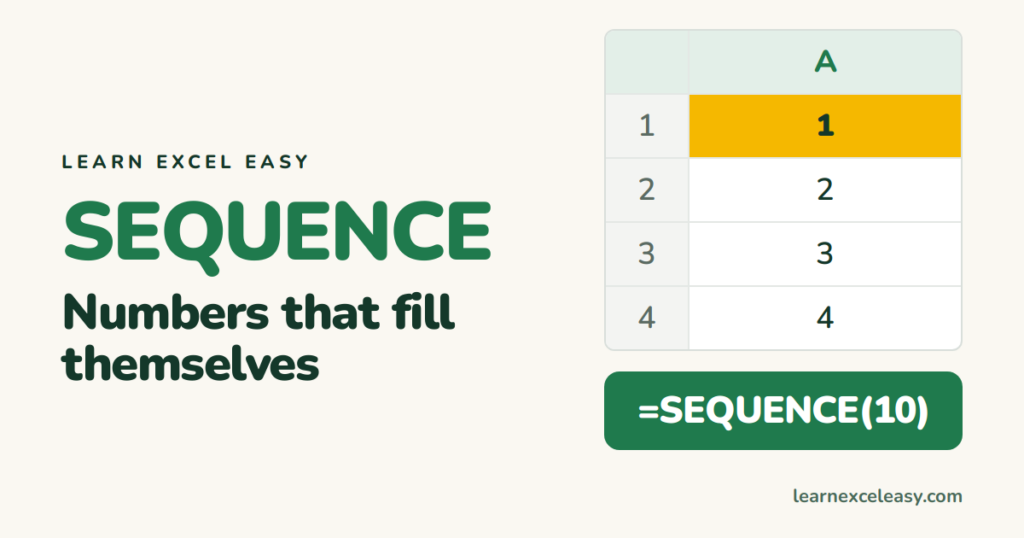
SEQUENCE (Excel 365 and 2021) returns a whole list of numbers from one formula. Type it in one cell and it spills down or across.
The formula
=SEQUENCE(rows, [columns], [start], [step])
Examples
| Formula | Gives |
|---|---|
=SEQUENCE(10) |
1 to 10 down a column |
=SEQUENCE(1,12) |
1 to 12 across a row |
=SEQUENCE(5,1,100,10) |
100, 110, 120, 130, 140 |
=SEQUENCE(4,3) |
a 4×3 grid numbered 1–12 |
=SEQUENCE(5,1,10,-2) |
10, 8, 6, 4, 2 |
A list of dates
=SEQUENCE(30,1,DATE(2026,10,1),1)
30 days from 1 October. Format the cells as dates (Ctrl+1 › Date). Every Monday for 12 weeks: step 7.
Row numbers that follow your data
=SEQUENCE(COUNTA(B2:B1000))
Add a name in column B and the numbering grows by itself. Delete one and it shrinks — no more renumbering by hand.
Why it says #SPILL!
The cells where the list wants to go are not empty. Clear them. (You cannot put SEQUENCE inside an Excel Table — tables do not allow spilling.)
No Excel 365?
Type 1 and 2, select both, drag the fill handle. Or use =ROW()-1 copied down. See fill down.

20 years with spreadsheets and enterprise systems. Writes one short, plain-English Excel lesson a day. Got an Excel question? learnexceleasycom@gmail.com
