
How to Transpose in Excel (turn rows into columns)
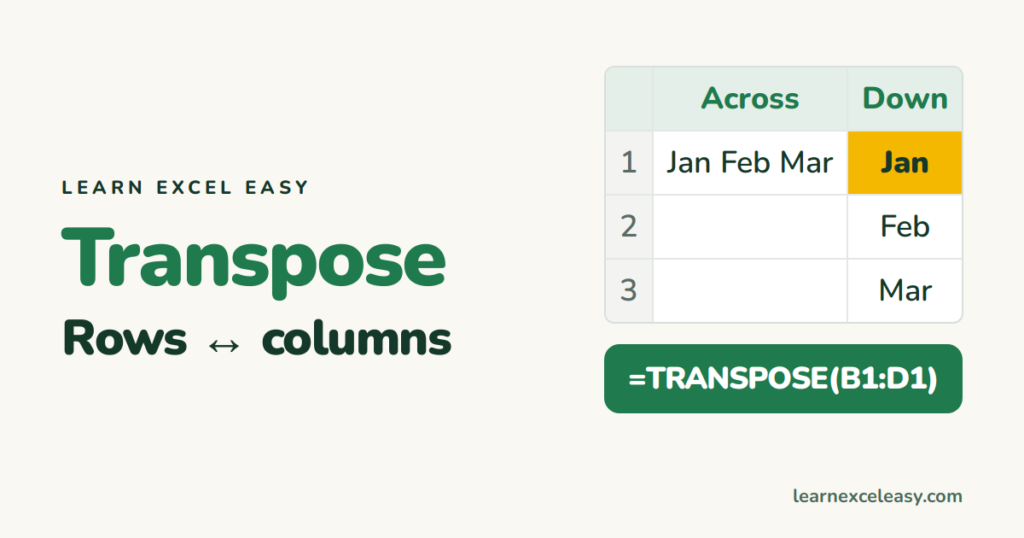
Paste Special › Transpose (one-time)
- Select the data and Ctrl+C.
- Click an empty cell outside the original range.
- Ctrl+Alt+V › tick Transpose › OK.
Or Home › Paste › the Transpose icon. The copy doesn’t update if the original changes.
TRANSPOSE function (stays linked)
=TRANSPOSE(A1:D5)
In Microsoft 365, type it in one cell — the result spills. A 5×4 range becomes 4×5. Edit the source and the flipped copy follows.
Older Excel
- Select an empty range of the flipped size (4 rows × 5 columns for A1:D5).
- Type
=TRANSPOSE(A1:D5). - Press Ctrl+Shift+Enter.
Common problems
- #SPILL! — cells in the way. Fix it.
- Blanks show as 0 —
=TRANSPOSE(IF(A1:D5="","",A1:D5)). - Can’t edit one cell of the result — it’s one array. Paste as values first.
- “Copy and paste areas are different” — you pasted over the original range. Pick another spot.
Flip a pivot layout instead
Drag fields between Rows and Columns: pivot tables. Flip chart axes: switch X and Y axis.

20 years with spreadsheets and enterprise systems. Writes one short, plain-English Excel lesson a day. Got an Excel question? learnexceleasycom@gmail.com
