
How to Print Gridlines in Excel (and why they sometimes won’t)
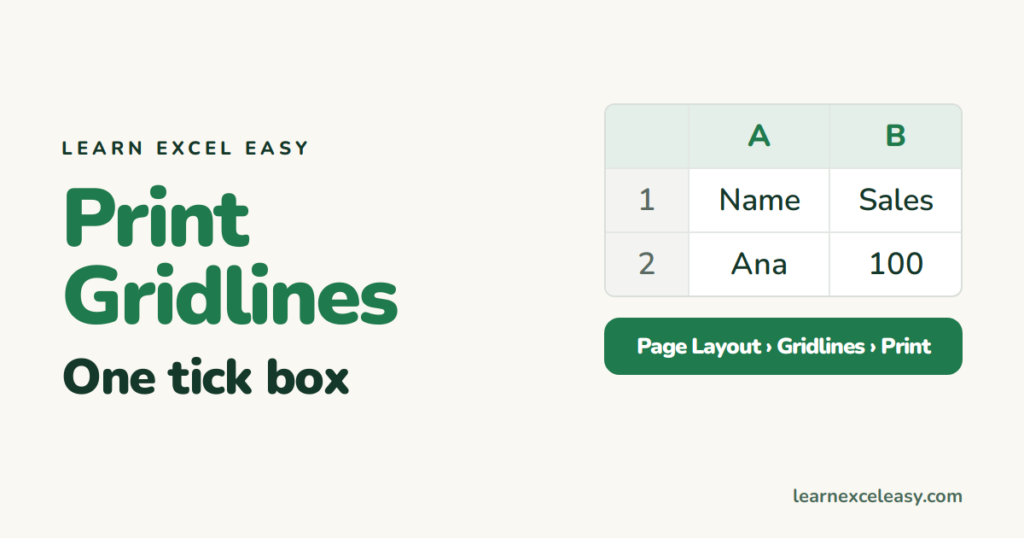
Gridlines show on screen but not on paper by default. One tick changes that.
Steps
- Go to the Page Layout tab.
- In the Sheet Options group, under Gridlines, tick Print.
- Ctrl + P — the preview shows the lines.
Only around your data, not the empty area
Gridlines print for the used range only. To print exactly one block, set a print area first.
Darker lines
Printed gridlines are light grey. For clear black lines use borders instead: select the data › Home › Borders › All Borders. Borders always print.
Gridlines don’t show on screen either
View tab › tick Gridlines. If they still don’t show, the cells have a white fill — select all › Home › Fill Color › No Fill.
The Print tick box is greyed out
The sheet is in Page Break Preview or a chart is selected. Click a normal cell, View › Normal.
Check it worked
Ctrl + P. The preview shows light grey lines between every cell in the printed area.
Row and column headings too
Same group: under Headings tick Print. The A, B, C and 1, 2, 3 print with the data.

20 years with spreadsheets and enterprise systems. Writes one short, plain-English Excel lesson a day. Got an Excel question? learnexceleasycom@gmail.com
