
How to Make a Budget in Excel (simple monthly budget, step by step)
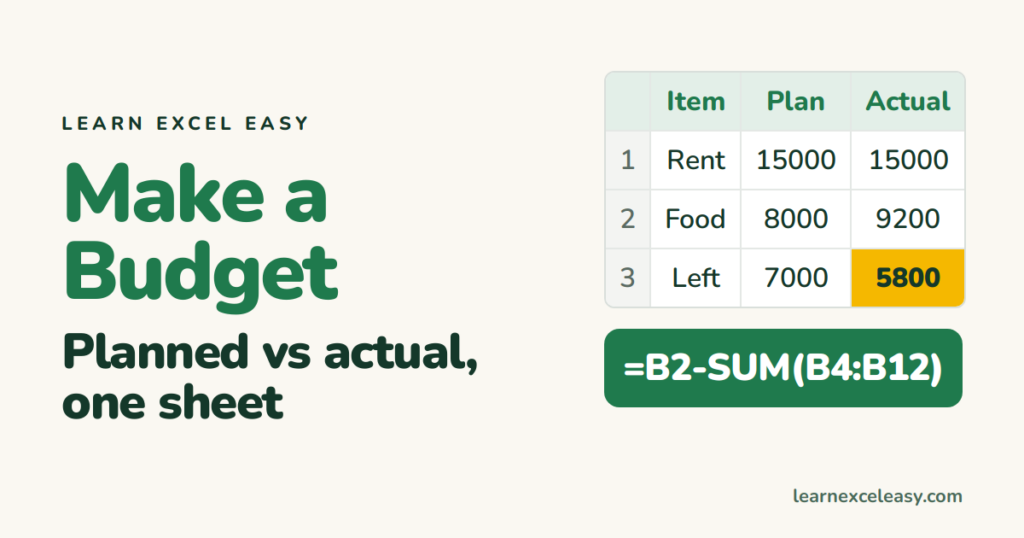
One sheet, two columns of numbers, one formula. It takes 15 minutes and you will actually use it.
Step 1: the layout
| A | B | C | D | |
|---|---|---|---|---|
| 1 | Plan | Actual | Diff | |
| 2 | Income | 30000 | 30000 | |
| 3 | ||||
| 4 | Rent | 15000 | 15000 | |
| 5 | Food | 8000 | 9200 | |
| 6 | Transport | 2000 | 1800 | |
| … | (more rows) | |||
| 12 | Total spent | |||
| 13 | Left over |
Type your own categories in A4 downward. Use round numbers for Plan; you’ll fill Actual through the month.
Step 2: the formulas
- B12:
=SUM(B4:B11). Drag to C12. - B13:
=B2-B12. Drag to C13. - D4:
=B4-C4. Drag down to D11. Positive = under budget, negative = over.
Step 3: make overspending obvious
Select D4:D11 › Conditional Formatting › Highlight Cells Rules › Less Than › 0 › Light Red Fill.
Step 4: format
Select B2:D13 › Ctrl + Shift + 1 for commas. Bold row 1 and rows 12–13. Freeze row 1.
Step 5: next month
Right-click the sheet tab › Move or Copy › tick Create a copy. Rename it. Clear column C.
Check it worked
Left over (C13) = Income − every Actual. Change one Actual and watch C13 move.
Going further
A pie chart of column C shows where the money goes: select A4:A11 and C4:C11 (Ctrl for the second range) › Insert › Pie. Lesson: pie chart.

20 years with spreadsheets and enterprise systems. Writes one short, plain-English Excel lesson a day. Got an Excel question? learnexceleasycom@gmail.com
