
Excel Protected View: what it is and how to turn it off
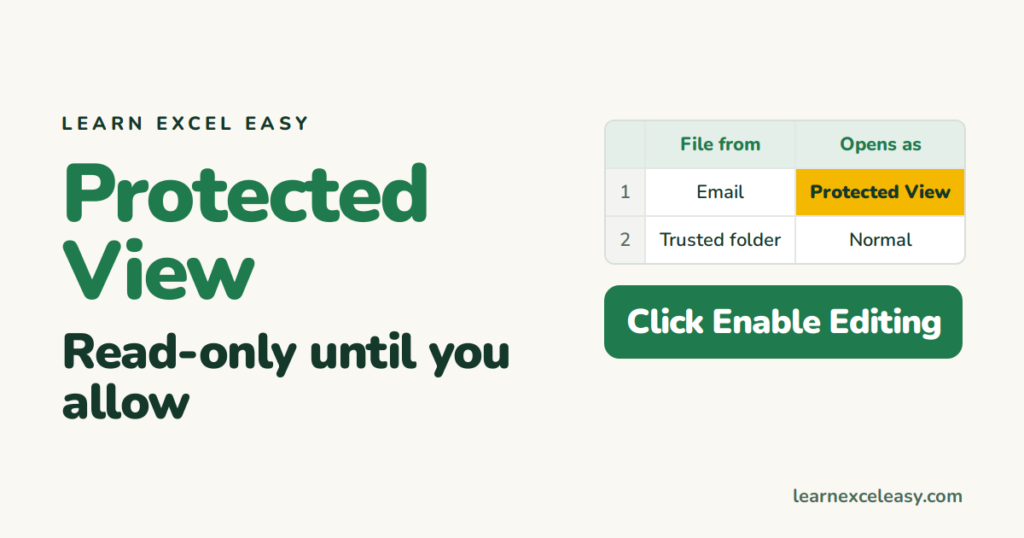
Protected View opens a file read-only in a safe sandbox because it came from the internet, an email, or an unsafe location. It protects you from harmful macros and links.
Edit the file
Click Enable Editing on the yellow bar. Only do this for files you trust.
Stop it for one file
Right-click the file in File Explorer › Properties › tick Unblock at the bottom › OK.
Stop it for a folder you trust (best option)
- File › Options › Trust Center › Trust Center Settings.
- Trusted Locations › Add new location.
- Pick the folder where you save work files.
Files in that folder open normally. Everything else stays protected.
Turn it off completely (not recommended)
Trust Center Settings › Protected View › untick the three boxes. You lose the safety net for every file.
“Protected View — Office has detected a problem”
The file may be damaged. See corrupted file fixes.
Protected View vs a protected sheet
Different things. A sheet locked with a password is covered in unprotect a sheet.

20 years with spreadsheets and enterprise systems. Writes one short, plain-English Excel lesson a day. Got an Excel question? learnexceleasycom@gmail.com
