
Sort by Color in Excel: bring the coloured rows to the top
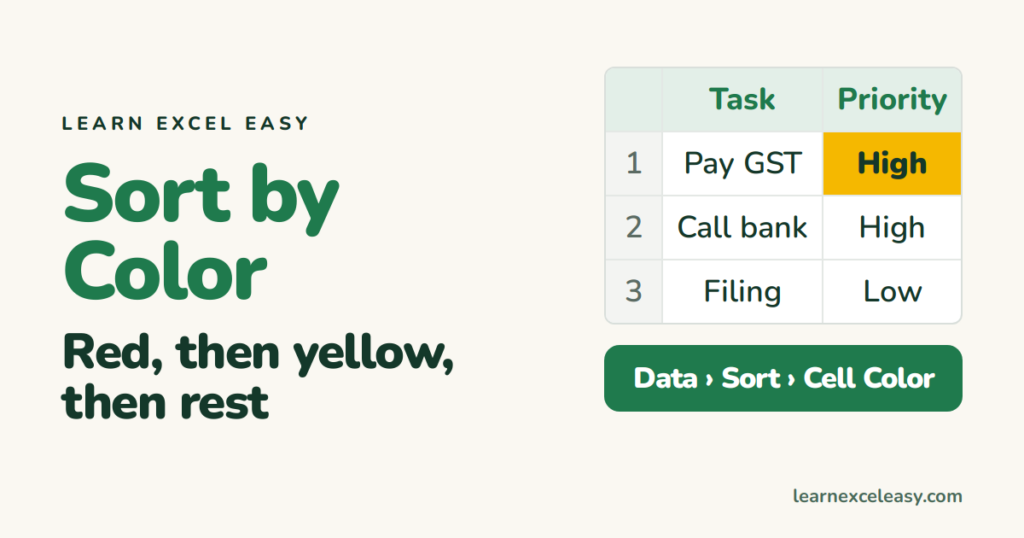
Sorting by colour groups the coloured rows together — useful when colours mean priority.
Quick way: one colour to the top
Right-click a coloured cell › Sort › Put Selected Cell Color On Top. Done.
Several colours in a set order
- Click inside the data › Data › Sort.
- Column: the coloured column. Sort On: Cell Color. Order: pick red › On Top.
- Click Copy Level, then change the colour to yellow.
- Repeat for each colour › OK.
Red rows first, then yellow, then everything uncoloured.
Font colour or icons
In the same box, Sort On can be Font Color or Conditional Formatting Icon (traffic lights, arrows).
Colours from conditional formatting
Works the same — Excel sorts by the colour it displays. But since the colour comes from a rule, it’s usually cleaner to sort by the value that triggers the rule.
Then by another column
Add a level after the colour levels: Then by Date, Oldest to Newest. See custom sort.
Watch out
- Select the whole table (or one cell inside it), not one column — otherwise rows get split apart.
- Colours with slightly different shades count as different colours.
Only want to see the coloured rows? filter by colour

20 years with spreadsheets and enterprise systems. Writes one short, plain-English Excel lesson a day. Got an Excel question? learnexceleasycom@gmail.com
