
How to Remove a Password from Excel (when you know it)
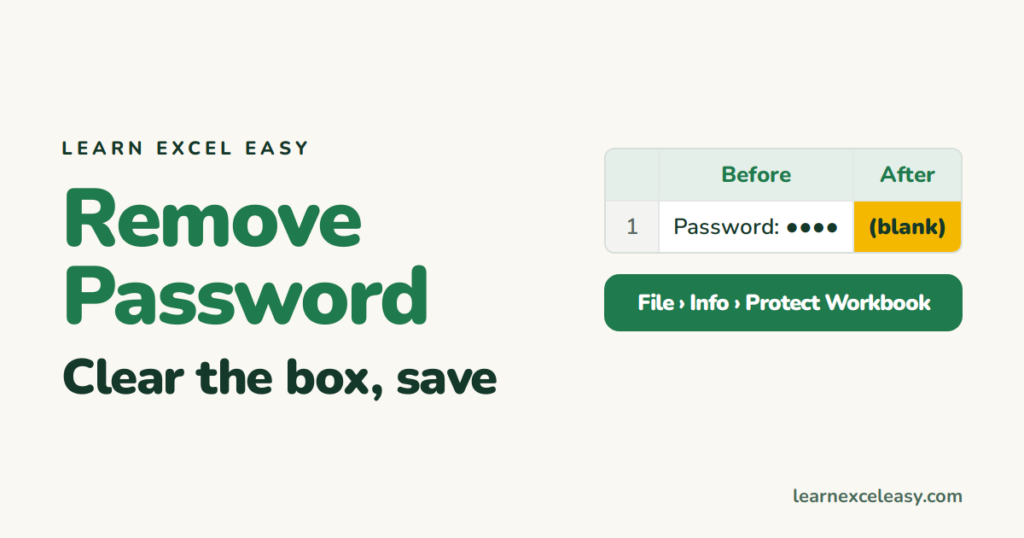
Excel has three different kinds of password. Each is removed in a different place, and each needs the current password.
1. Password to open the file
- Open the file with the password.
- File › Info › Protect Workbook › Encrypt with Password.
- Delete the dots so the box is empty › OK.
- Save (Ctrl+S).
Forget to save and the password stays.
2. Protected sheet (can’t edit cells)
Review › Unprotect Sheet, enter the password. Full guide: unprotect a sheet.
3. Protected workbook structure (can’t add, delete or unhide sheets)
Review › Protect Workbook (it’s highlighted when on), enter the password.
4. Read-only / password to modify
- File › Save As › Browse.
- Tools (next to Save) › General Options.
- Clear Password to modify and untick Read-only recommended › OK › Save.
Forgot the password?
The open password uses strong encryption — there’s no built-in way around it. Ask whoever set it, check an older unprotected copy or backup, or a version in OneDrive’s Version History from before the password was added.
Setting one up properly next time: password protect Excel.

20 years with spreadsheets and enterprise systems. Writes one short, plain-English Excel lesson a day. Got an Excel question? learnexceleasycom@gmail.com
