
How to Write a Macro in Excel (your first 5 lines of VBA)
Recording is fine, but some things cannot be recorded — a message box, a loop, a condition. Writing a macro is typing a few plain lines.
What you will make
A macro that clears the input cells on a form and stamps today’s date.
Steps
- Press Alt + F11 to open the editor.
- Insert › Module. A blank white page opens.
- Type:
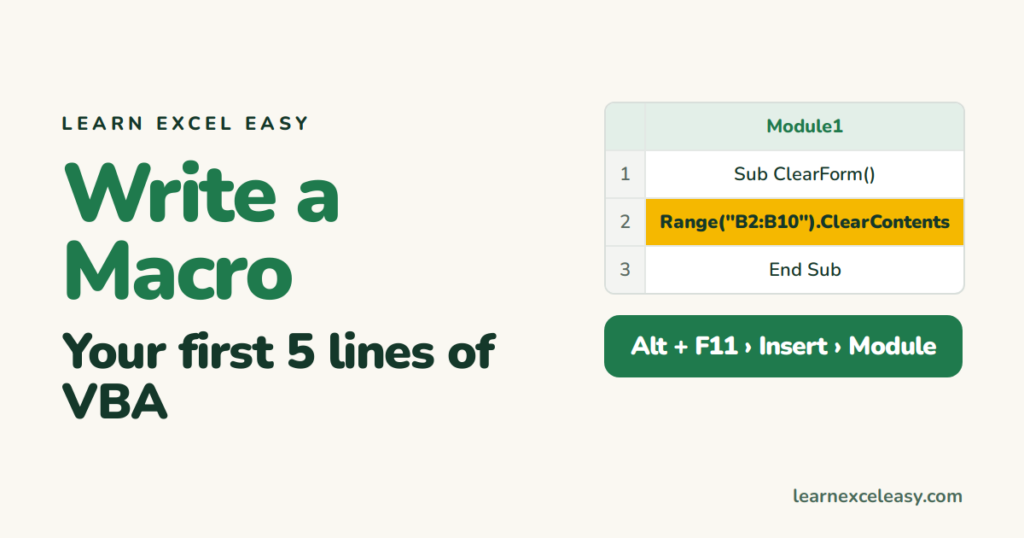
Sub ClearForm()
    Range("B2:B10").ClearContents
    Range("D1").Value = Date
    MsgBox "Form cleared"
End Sub
- Click anywhere inside it and press F5.
Back in Excel: B2:B10 is empty, D1 shows today, and a box said “Form cleared”.
What each line means
Sub ClearForm()— start of a macro called ClearForm.Range("B2:B10").ClearContents— empty those cells (formatting stays).Range("D1").Value = Date— put today’s date in D1.MsgBox "..."— show a pop-up.End Sub— the end.
Give it a button
In Excel: Developer › Insert › Button (Form Control) › draw it › pick ClearForm › OK. Right-click › Edit Text to name it.
Save it
File › Save As › Excel Macro-Enabled Workbook (.xlsm).
Three more lines worth knowing
If Range("B2").Value = "" Then MsgBox "B2 is empty"
For i = 2 To 10: Cells(i, 3).Value = i * 10: Next i
ActiveSheet.Name = "Done"
Check it worked
Type something in B5, click the button. B5 clears.
Common mistake
A red line = a typo. Read the line, fix the spelling, F5 again. Yellow highlight = the macro stopped there; press the Reset (■) button.

20 years with spreadsheets and enterprise systems. Writes one short, plain-English Excel lesson a day. Got an Excel question? learnexceleasycom@gmail.com
