
ROUND in Excel: to 2 decimals, to the nearest 10, up or down
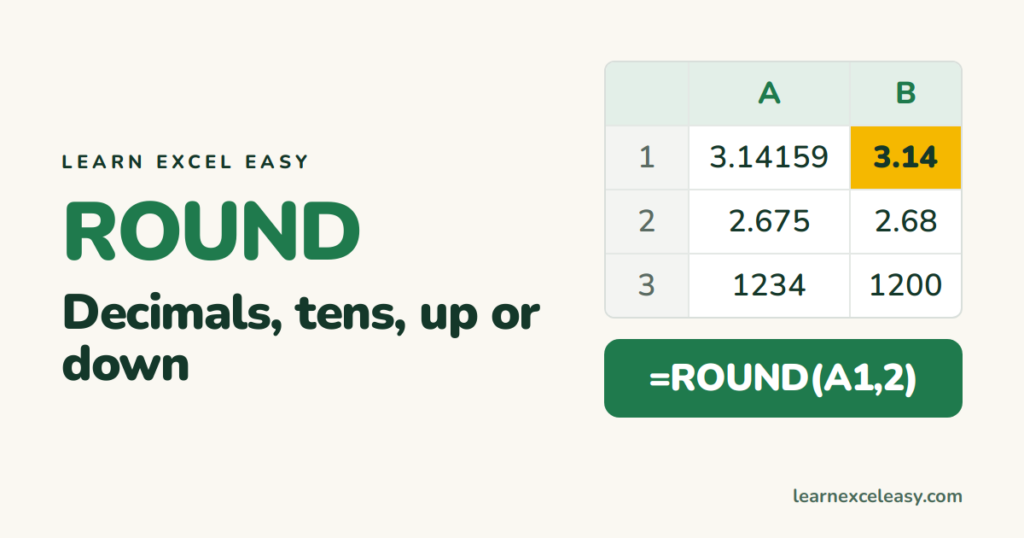
ROUND shortens a number to the decimal places you want and actually changes the value — unlike formatting, which only hides digits.
The formula
=ROUND(number, decimals)
Steps
- 3.14159 in A1.
- Click B1. Type
=ROUND(A1, 2). Enter.
Result: 3.14.
The decimals number
| Formula | 1234.567 becomes |
|---|---|
=ROUND(A1, 2) |
1234.57 |
=ROUND(A1, 0) |
1235 |
=ROUND(A1, -1) |
1230 (nearest 10) |
=ROUND(A1, -2) |
1200 (nearest 100) |
Always up, always down
=ROUNDUP(A1, 0) → 1235 even for 1234.1. =ROUNDDOWN(A1, 0) → 1234 even for 1234.9.
To the nearest 0.5 or 5
=MROUND(A1, 0.5)
=MROUND(A1, 5)
Why formatting is not enough
Format 2.675 to show 2.68, then multiply by 100 — Excel uses 2.675 and gives 267.5, not 268. ROUND first if the shown number must be the real number (invoices, tax).
Check it worked
=B1*1000 on a ROUNDed 3.14 gives exactly 3140. On a formatted-only cell it gives 3141.59.

20 years with spreadsheets and enterprise systems. Writes one short, plain-English Excel lesson a day. Got an Excel question? learnexceleasycom@gmail.com
