
COUNTIFS in Excel: count rows that match two or more conditions
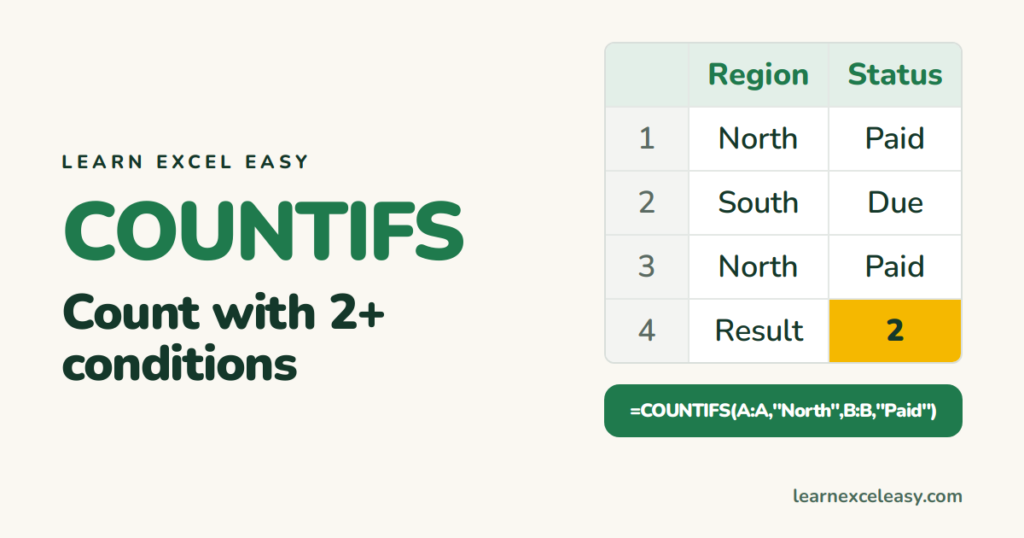
COUNTIF counts with one condition. COUNTIFS counts rows where every condition is true. Region is North and status is Paid. Date is in March and amount is over 1,000.
The formula
=COUNTIFS(range1, criteria1, range2, criteria2, ...)
Pairs of where to look and what to look for. Up to 127 pairs. All ranges must be the same size.
Example: North and Paid
| A: Region | B: Status | |
|---|---|---|
| 2 | North | Paid |
| 3 | South | Due |
| 4 | North | Paid |
| 5 | North | Due |
=COUNTIFS(A2:A5,"North",B2:B5,"Paid")
Result: 2. Only rows 2 and 4 match both.
5 everyday versions
- Criteria in cells (best practice):
=COUNTIFS(A:A,E1,B:B,F1)— change E1 and the count updates. - Numbers above a limit:
=COUNTIFS(A:A,"North",C:C,">1000") - Limit in a cell:
=COUNTIFS(C:C,">"&G1)— the operator goes in quotes, then&the cell. - Dates between two days:
=COUNTIFS(D:D,">="&G1,D:D,"<="&H1)— the same column twice, one condition each. - Not blank:
=COUNTIFS(A:A,"North",B:B,"<>")
OR instead of AND
COUNTIFS only does AND. For North or South, add two counts:
=COUNTIFS(A:A,"North",B:B,"Paid")+COUNTIFS(A:A,"South",B:B,"Paid")
Why it returns 0
- Ranges are different sizes (A2:A100 with B2:B99) — you get
#VALUE!or a wrong count. - Extra spaces in the data: “North ” is not “North”. Clean with TRIM.
- Numbers stored as text. See number stored as text.
- Operator outside the quotes:
>"1000"is wrong,">1000"is right.
Check it worked
Turn on a filter, filter both columns by hand, and read the row count in the status bar. It should match.
Related: COUNTIF · SUMIFS (same idea, adds instead of counts).

20 years with spreadsheets and enterprise systems. Writes one short, plain-English Excel lesson a day. Got an Excel question? learnexceleasycom@gmail.com
