
#SPILL! Error in Excel: what it means and how to fix it
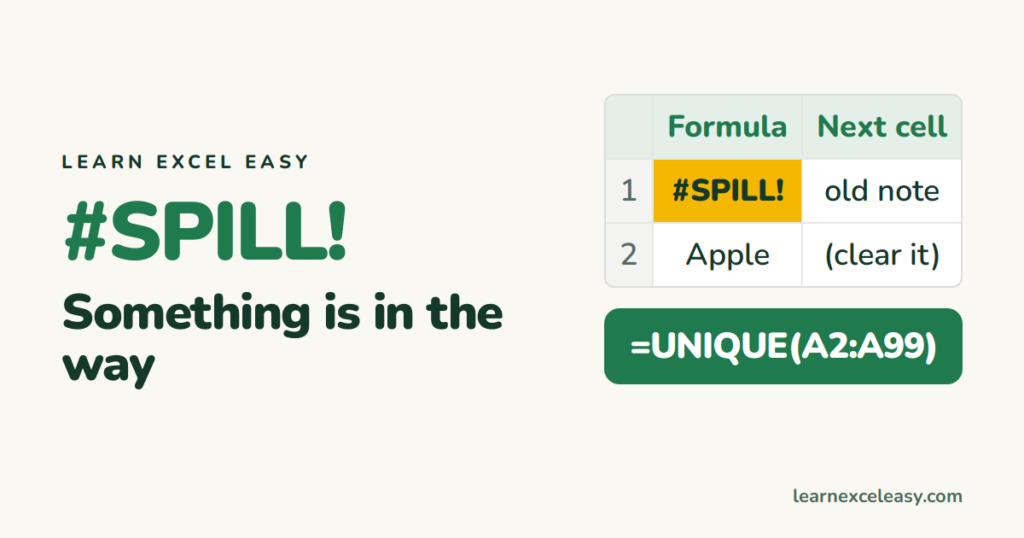
Dynamic array formulas like UNIQUE, FILTER and SORT return many results that “spill” into the cells below or to the right. #SPILL! means they can’t.
Find the cause
Click the #SPILL! cell, then the ⚠ icon. It tells you the reason and can Select Obstructing Cells.
1. Spill range isn’t blank
Something sits where the results should go — text, a number, even a single space. Delete it.
2. Merged cells in the way
Unmerge them: Home › Merge & Center.
3. Formula is inside an Excel Table
Tables don’t allow spilling. Put the formula outside the table, or convert it: table to range.
4. Whole-column references
=A:A*2 tries to spill a million rows. Use the real range: =A2:A500*2.
5. Off the edge of the sheet
Move the formula higher up or further left.
You only want one value
An old formula like =VLOOKUP(A:A,...) now spills. Point it at one cell (A2) or add @: =@A:A.
Referring to the spilled results
Use # after the first cell: =SUM(D2#) always covers the whole spill.

20 years with spreadsheets and enterprise systems. Writes one short, plain-English Excel lesson a day. Got an Excel question? learnexceleasycom@gmail.com
