
Excel Print Preview: check before you print
Open it
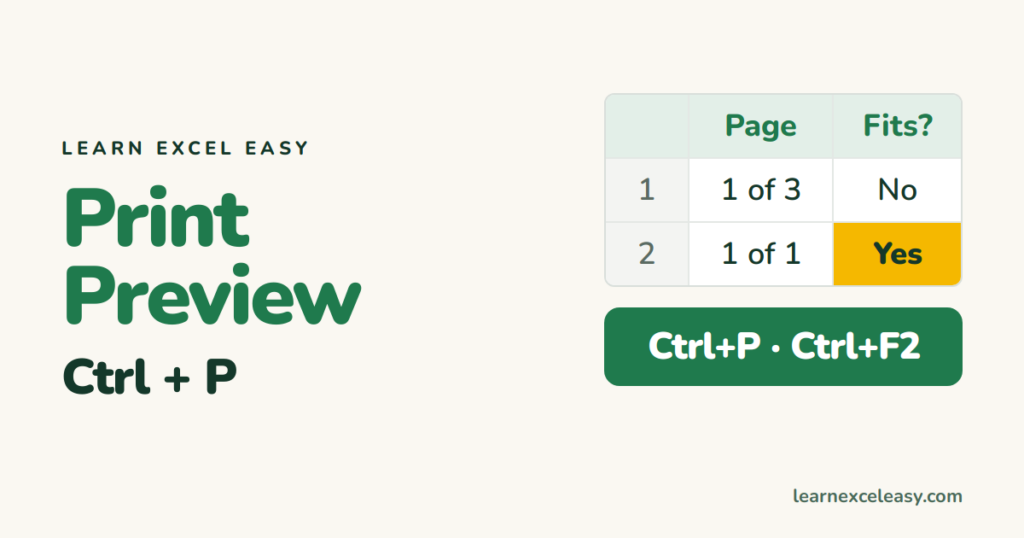
Press Ctrl+P (or Ctrl+F2, or File › Print). The preview fills the right side. Use the arrows at the bottom to page through.
Fix what you see
- Columns spill onto a second page: under Settings choose Fit All Columns on One Page. Full guide: fit to one page.
- Wide table: switch to Landscape Orientation.
- Printing the whole sheet when you want a part: set a print area.
- Headers missing on page 2: repeat the header row.
- No grid lines on paper: print gridlines.
Zoom and margins
The two small buttons bottom-right: Zoom to Page, and Show Margins — drag the margin lines directly.
Preview while you edit
View › Page Layout shows pages as you work. View › Page Break Preview shows blue page borders you can drag. Page breaks.
One-click button
Click the small arrow on the Quick Access Toolbar › tick Print Preview and Print.
Preview is blank
Check for a print area pointing at empty cells: Page Layout › Print Area › Clear Print Area.

20 years with spreadsheets and enterprise systems. Writes one short, plain-English Excel lesson a day. Got an Excel question? learnexceleasycom@gmail.com
